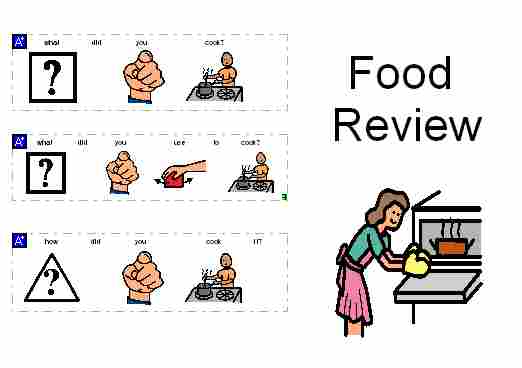
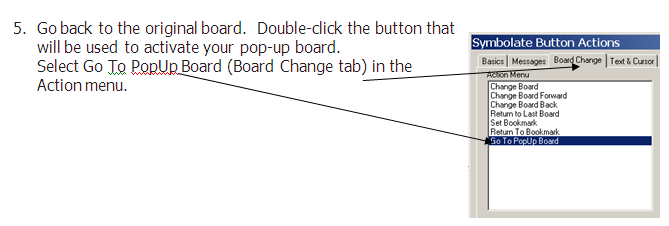
You have the ability to create small communication boards that pop up on top of a current board in use.Pop-ups allow you to keep the overall appearance of a board simple while allowing the user to access additional vocabulary.Pop-ups are an excellent way to organize larger activity specific vocabulary.
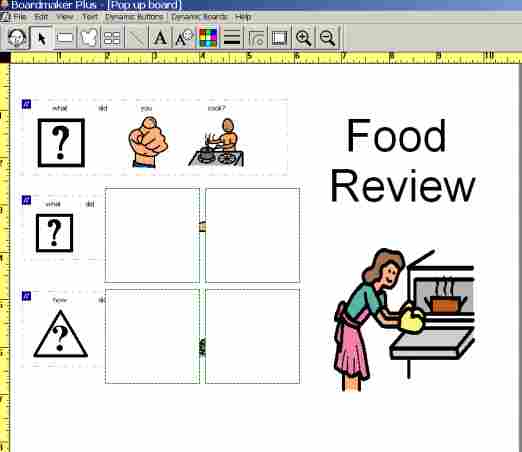
To create a Pop-up board, lay out the buttons for the Pop-up right on top of the topic board itself.A special command will remove the additional buttons and create a pop-up board sized to fit them.
1.Create an activity specific communication display.
2.Create the buttons that will become the Pop-up board in the location where the pop-up should appear.You may create the buttons wherever it is convenient, the use the Pointer Tool to move them into final position where the pop up board should appear.
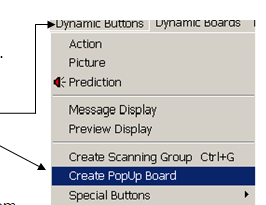
3. Make sure ALL the buttons created for the pop-up board are selected before proceeding with this step. (Hold down the SHIFT key while clicking on each button.)THEN select Create PopUp Board in the Dynamic Buttons menu.
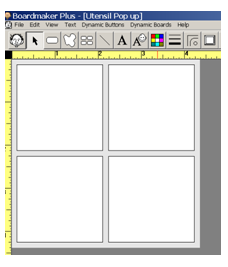
4. The selected buttons are cut from the topic board and pasted into a new board that is sized accordingly.
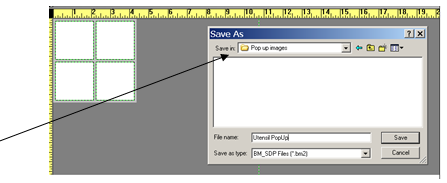
When the SAVE AS dialog box appears, enter the name for your new pop-up board using a title that will identify it as a pop-up; for example, “Utensil PopUp”.That way it can be quickly identified for other use as a pop-up on other boards.
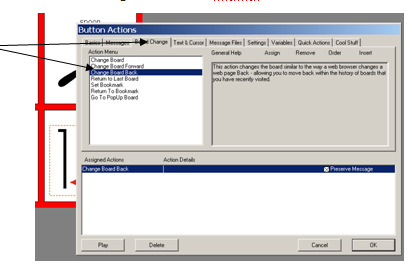
4.Once the pop-up board has been created, the appearance of the buttons can be set by choosing the desired color, border, and corner settings.Add symbols, text, and button actions to the pop-up if that was not done before using the Create PopUp Board command.Be sure to assign at least one button the Change Board Back Action, then save the board.
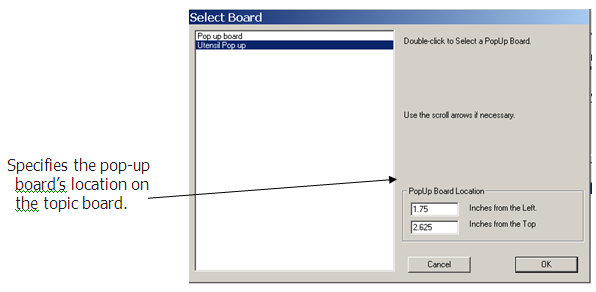
6.The new Pop-up boards will automatically be selected in the board list.Its location is based on where you originally placed the buttons on the topic board when you used the Create PopUp Board command.Click on the OK button when finished.