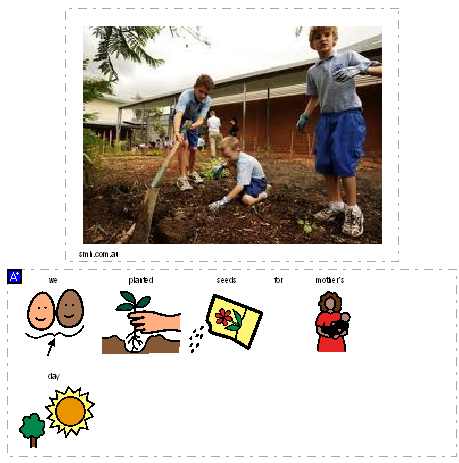
Symbolate can be used during a shared writing experience to create text for students with limited literacy skills.
1. Using the TechTip sheet “Single-Page Layout” create a page that will work for your document.
2. Using the TechTip sheet “Using Google Images in Boardmaker Plus” place a desired digital image onto the document page to serve as a writing prompt.
3. Using the TechTip sheet “Basic Typing in Symbolate” create a text box for your message and type in the desired message. Adjust the font and picture size and be sure the text is on the top. Here is an example of what your page might look like.
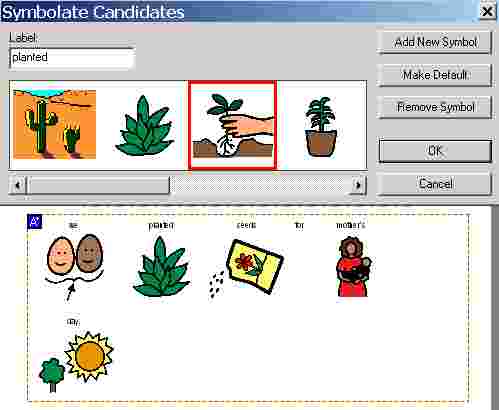
4. Use the TechTip sheet “Changing Word-Symbol Pairings in Symbolate” to adjust the symbols that you want to use.
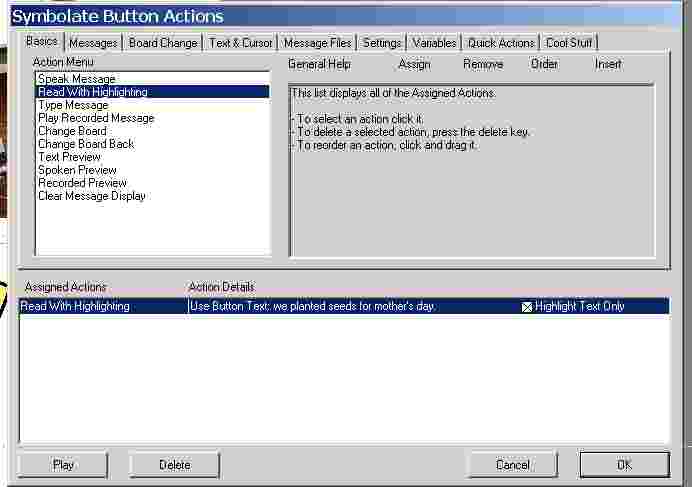
5. Using the TechTip sheet “Read with Highlighting in Symbolate” make the text of the shared writing experience read out loud as students follow along.
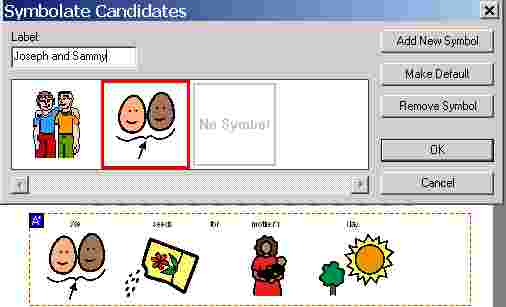
6. Using the TechTip Sheet “Changing the Text for Word-Symbol Pairing” personalize the labels of the symbols.