Module 1 - Creating a GoTalk 20+ overlay
The Go-Talk 20+ is a voice output device with 5 levels so that it can hold recorded voice for five different overlays.
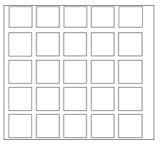
1. Obtain the GoTalk 20+ pre-designed overlay from the Boardmaker Templates File. Use the Tech Tip sheet “Locating Boardmkaer Overlays on s-share” to find the Go-Talk 20 + overlay.
2. Decide what vocabulary you need for the STUDENT to be able to say for the particular activity.
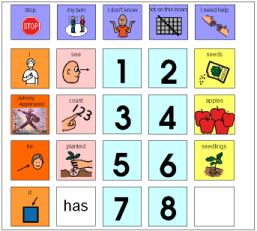
In this example the student will use the overlay to participate in a math lesson that incorporates the story of Johnny Appleseed with counting. Students will be asked how many seeds one apple has, how many apples are on a tree, how many apple seeds Johnny Appleseed planted in a particular place etc.
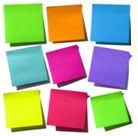
3. Using a blank overlay and sticky notes is a good way to plan out your vocabulary.
4. Once the vocabulary is planned, put the words in the blanks on the overlay. Use Google images for specific pictures for items that are not in the Boardmaker vocabulary. (See Tech Tips sheet for Using Google Images).
5. Other sheets you will need to refer to in order to compete the overlay as shown are:
6. Note that the top row of the Go-Talk 20+ is designated for core messages that the student will need for any time of day or activity that is being participated in. This row is always the same for the student no matter which overlay is being used. Once recorded, this row does not have to be re-recorded no matter which overlay level is being used.