Module 2 - Creating a GoTalk 9+ Overlay for Bingo Game

The Go-Talk 9+ is a voice output device with 5 levels, allowing it to hold recorded voice for five different overlays at a time. This module will assist you in creating overlays to use in Bingo games.  

The Go-Talk 20+ module is about creating an overlay to use during counting activities to go along with apple or Johnny Appleseed lessons. Go –Talk 9+ overlays could be used for introducing vocabulary for these lessons in a Bingo Game format.

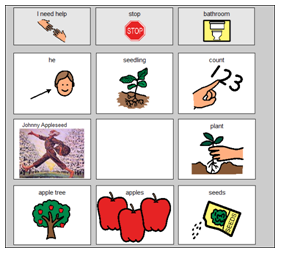
1. Locate the Go-Talk 9 + template (use Tech Tips sheet “Locating Boardmaker Templates on s share” if you need help with this step.) Select the vocabulary that you wish to put on the Go-Talk 9 + overlay. The symbols or images should be the same as the ones you will be using with other materials for the lessons using the same vocabulary. 

2. Add these words to the outer cells of the Go-Talk 9+ overlay. (Use Tech Tips sheets for adding Google images, adding more than one symbol to a cell etc. as needed.) This overlay can be used by all students to play Bingo.  The verbal students can use it out of the Go-Talk. Consider recording  “I have ___”, or “I found __” (he, seedling, count, etc.) for the student who needs the voice output. 

Click on the picture on the side to open the actual file in Boardmaker Plus.  You must have a Boardmaker Plus disk inserted for file to open appropriately.  It may take a few minutes to download.  

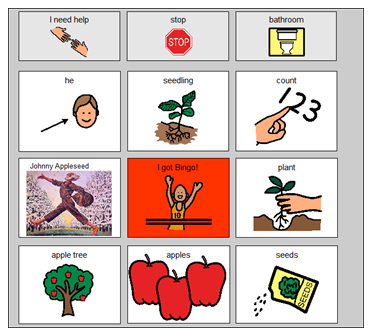
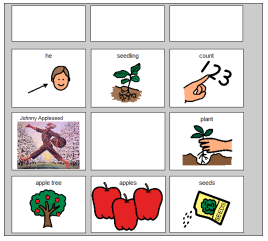
3. Add the generic messages to the top row.  This row is the core row. It contains the same 3 messages on every overlay created for a particular student and only needs recording once.  The recording carrys over to all 5 levels of the Go-Talk. Select messages that the student will find useful over a large number of activities and times of day.


Picture on right links to actual file in Boardmaker Plus. 

4.  Instead of the “free’ space in the middle, you could put an “I have Bingo” message there.


Picture on right links to actual file in Boardmaker Plus.  
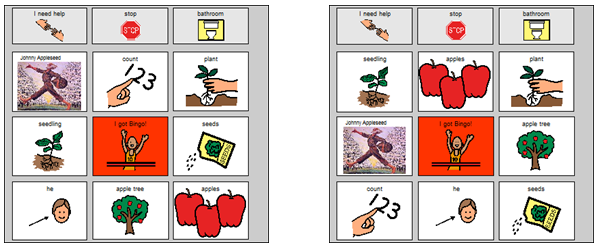
5. More boards with the same symbols, but in different locations can easily be made using the swap and shuffle features of Boardmaker.  Follow the Tech Tips sheet for Shuffle and Swap to do this.

 Picture above links to actual file in Boardmaker Plus.